
Scandit SDK Fundamentals — DataCaptureContext and the Five-Element Architecture
Last updated: 2026-06-10
TL;DR
Every Scandit SDK integration is built from five objects: DataCaptureContext holds the license and ties everything together, DataCaptureView renders frames to the screen, FrameSource drives the camera, a DataCaptureMode (BarcodeCapture, SparkScan, IdCapture, etc.) defines what to recognize, and an Overlay visualizes results. A context hosts exactly one mode at a time — feature switches are mode swaps, not concurrent modes. Getting the wiring order right — and releasing it correctly when the app moves to background — is the most common source of silent failures in new integrations.
TL;DR
- Every Scandit SDK integration is built from five objects:
DataCaptureContext(license + coordinator),FrameSource(camera),DataCaptureMode(recognition engine),DataCaptureView(screen rendering), and an Overlay (visual feedback). - Skipping or mis-ordering any element produces silent failures — the callback never fires rather than throwing an explicit error.
- A context hosts exactly one mode at a time. Switching capabilities means swapping modes, not running them concurrently.
- Getting the initialization sequence right once — and releasing correctly on background — eliminates the most common class of partner onboarding problems.
- License keys must be separated by environment (trial / development / production) and never committed to source control.
Five Core Building Blocks
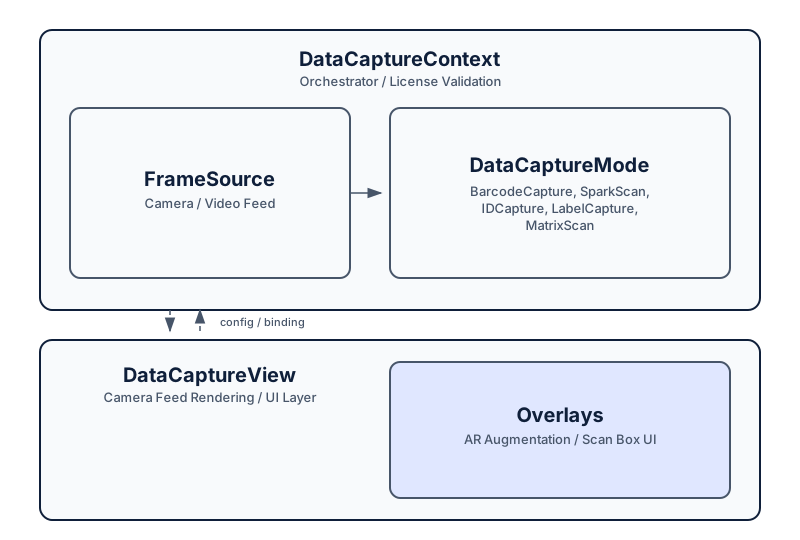
The Scandit SDK's architecture is deliberately layered: each object has a single, well-defined responsibility, and the dependencies flow in one direction. Understanding what each layer owns makes it straightforward to debug the inevitable integration issues.
DataCaptureContext — The Central Coordinator
DataCaptureContext is the root object of every Scandit SDK session. It holds three things: the license key, a reference to the active FrameSource, and the currently attached DataCaptureMode. Nothing in the SDK works without a context — no mode can decode frames, no view can render camera output, no overlay can paint results.
An important detail about license validation: on native platforms it does not complete synchronously inside context creation. The context object is constructed even if the key is invalid or the bundle ID does not match — the validation result surfaces asynchronously through DataCaptureContextListener status (ContextStatus) callbacks. Implement that listener if you want license problems to be visible rather than manifesting as a scanner that silently never fires. On web, DataCaptureContext.forLicenseKey() is an async call whose promise can reject on initialization failure, so wrap it in error handling.
The context also owns the camera lifecycle in the sense that starting and stopping the FrameSource is done through or alongside the context. A context without a frame source will never deliver frames to its attached mode. A frame source that is running without being attached to a context will produce no useful output.
DataCaptureView — The Screen Layer
DataCaptureView is a native view (UIView on iOS, View on Android, a DOM element on Web) that renders the camera preview and serves as the host surface for overlays. Its connection to DataCaptureContext is explicit: a DataCaptureView must be instantiated with a specific context, and it renders the frame stream from that context's active FrameSource.
A critical distinction: DataCaptureView is optional for off-screen processing. Warehouse automation pipelines, robotics vision systems, and fixed industrial cameras frequently run the full recognition pipeline without any UI — DataCaptureContext, a FrameSource, and a DataCaptureMode are sufficient. The view is required only when a live camera preview must be shown to an operator.
When a DataCaptureView is present, it must be added to the platform's view hierarchy and must be connected to the same context that the overlays and modes use. A mismatch — a view connected to context A while the overlay targets context B — produces no runtime error but renders nothing visually.
FrameSource — The Image Supply
FrameSource is the interface through which the SDK receives image data. In the overwhelming majority of integrations, the concrete implementation is Camera — the device's built-in camera, accessed through the SDK's own camera abstraction rather than the platform's native camera API directly. The default camera is obtained per platform via Camera.default (iOS), Camera.getDefaultCamera() (Android), or Camera.pickBestGuess() (Web, ideally followed by camera.applySettings(BarcodeCapture.recommendedCameraSettings)).
The FrameSource state machine's two primary states are ON (actively delivering frames) and OFF (idle, camera released). Transitioning between states is explicit: the developer calls switchToDesiredState() with the target state. The SDK does not manage this transition automatically based on app lifecycle — that responsibility belongs to the integration code. Camera permission is also the application's responsibility on native platforms: request it through the OS APIs before switching the camera on, or the camera will deliver no frames. Failing to switch the frame source off when an activity or view controller moves to background is the most common cause of battery drain and camera resource conflicts reported in Data Connect's partner onboarding support queue.
Beyond mobile handsets, Scandit officially supports embedded platforms such as Linux for fixed-camera and industrial scenarios. These are less common in Korean enterprise deployments but relevant for manufacturing and robotics use cases.
DataCaptureMode — The Recognition Engine
DataCaptureMode defines what the SDK should look for in each frame. It is the policy layer that sits between the raw image stream from FrameSource and the decoded result callbacks that the application receives. Each mode type is optimized for a specific recognition task:
- BarcodeCapture: Single-barcode scan-and-confirm. The default mode for retail, logistics, healthcare, and most enterprise scanning workflows. Configured with
BarcodeCaptureSettingsto control active symbologies, active symbol counts, and post-decode filtering. - SparkScan: A pre-built UX for high-speed multi-scan workflows. Manages the scan button, result list, and camera state through a built-in controller. Reduces UI integration work for high-volume picking and counting scenarios.
- MatrixScan Batch: Multi-barcode detection and decoding in a single frame. Relevant for receiving dock operations and inventory count scenarios where multiple items are in view simultaneously.
- MatrixScan AR: Augmented reality overlays on top of multi-barcode results. Useful for warehouse picking-assist and sort verification where visual confirmation per barcode reduces error rates.
- MatrixScan Count: Specialized for counting items with unique barcodes in a single camera pass. Grocery receiving and pharmacy dispensing verification are the primary Korean use cases.
- IdCapture: Identity document scanning — passports, Korean resident registration cards (주민등록증), driver's licenses. Extracts MRZ, barcode (PDF417 on Korean documents), and visual zone data.
- LabelCapture: Simultaneous capture of multiple barcodes and text fields within a structured label region. Shipping label processing and pharmaceutical label verification are representative scenarios.
A DataCaptureContext hosts exactly one mode at a time. Attaching a second mode is an error — workflows that need more than one capability (for example, barcode scanning followed by ID capture) are designed as sequential mode swaps, discussed in the Mode Switching section below.
Each mode is instantiated with a reference to DataCaptureContext and a settings object specific to that mode type. The mode is active as long as it is attached to a context with a running frame source.
iOS Swift — BarcodeCaptureListener callback implementation
import ScanditBarcodeCapture

class ScanViewController: UIViewController, BarcodeCaptureListener {

    func barcodeCapture(_ barcodeCapture: BarcodeCapture,
                        didScanIn session: BarcodeCaptureSession,
                        frameData: FrameData) {
        // newlyRecognizedBarcode is singular per Scandit iOS API
        guard let barcode = session.newlyRecognizedBarcode else { return }
        let symbology = barcode.symbology.description
        let data = barcode.data ?? "(no data)"
        print("Scanned: [\(symbology)] \(data)")

        // Disable immediately to prevent duplicate scans
        DispatchQueue.main.async {
            barcodeCapture.isEnabled = false
            self.handleScanResult(data: data)
        }
    }
}

// Register listener after creating BarcodeCapture
barcodeCapture.addListener(self)
Overlays — The Feedback Layer
Overlays are view-level objects that render visual feedback on top of the DataCaptureView. Each mode type has a corresponding overlay type: BarcodeCaptureOverlay for BarcodeCapture, MatrixScanBasicOverlay for MatrixScan. SparkScan is the exception — it does not use a DataCaptureView overlay at all. SparkScan ships its own pre-built scanning UI, SparkScanView, which bundles the trigger button, feedback, and camera handling in one component.
Overlays are optional in all architectures: off-screen pipelines have no view and therefore no overlay. Even in interactive applications, custom UI designs sometimes suppress the default overlay and implement their own feedback using the result callbacks. The Scandit overlay system provides sensible defaults — a viewfinder aiming rectangle, a brief highlight on recognized barcodes — that satisfy most standard scanning UX requirements without custom development.
The overlay is instantiated with references to both the mode and the view. If either reference is wrong — overlay built for mode A but attached to a view connected to context B — the overlay renders nothing, typically without an error. This silent failure pattern is worth knowing: most five-element wiring bugs surface as "nothing happens" rather than as thrown exceptions.
License Model
Key Issuance
Scandit license keys are issued through the Scandit customer portal. Each key encodes the following parameters: the licensed bundle IDs or package names, the expiry date, the feature set (which modes are enabled — BarcodeCapture only, or BarcodeCapture plus IdCapture, etc.), and a cryptographic signature that prevents modification.
Data Connect, as Scandit's official Korean partner, manages license issuance and renewal for Korean enterprise clients. The practical workflow for a Korean enterprise deployment:
- Data Connect requests trial keys from Scandit for the integration team's development bundle IDs.
- The integration team builds and tests against trial keys.
- On go-live, Data Connect requests production keys scoped to the production bundle ID.
- Production keys are stored in the application build process (typically via environment variables or a secrets manager) and never committed to source control.
Validation at Runtime
License validation does not block context creation on native platforms. The SDK checks the key's parameters — bundle ID binding, expiry, enabled features — and reports the outcome asynchronously through the DataCaptureContextListener status (ContextStatus) callbacks. An invalid or expired key therefore looks like a scanner that never delivers results unless the application listens for context status changes and surfaces them.
After a successful validation, the SDK tolerates temporary offline operation for a limited period, which makes it practical for environments with intermittent connectivity. Deployments that must run permanently without network access — air-gapped facilities, underground sites — should not rely on that grace window; discuss a dedicated offline license arrangement with Scandit or Data Connect at contract time.
A leaked license key cannot be revoked on devices that are already offline — only at next key rotation. Korean enterprise clients with security requirements should treat the license key as a credential, store it in secure build pipelines, and rotate it on a defined schedule. A key that is embedded in a publicly distributed app (particularly a consumer-facing app distributed through the App Store or Google Play) should be treated as potentially extractable and scoped accordingly.
Key Types
| Key Type | Time Limit | Watermark | Intended Use |
|---|---|---|---|
| Trial | Limited duration | Yes | POC and initial development |
| Development | None | Yes (overlaid on frames) | Ongoing development without expiry pressure |
| Production | License term (annual or multi-year) | No | Shipping applications |
The watermark on trial and development keys is a visible overlay on camera frames — text rendering across the camera preview. It is not a subtle indicator; it makes trial keys obviously unsuitable for production use. This is deliberate: the distinction between trial and production builds is binary, not gradual.
Expiry Handling
When a production key approaches expiry, the SDK reports license status through the DataCaptureContextListener callbacks, giving the application an opportunity to surface an internal alert. After the expiry date, scanning stops; any grace terms depend on the license agreement, so confirm the specifics with Scandit or Data Connect at contract time rather than assuming a fixed window.
The practical recommendation for Korean enterprise deployments: configure an internal monitoring alert for 60 days before key expiry, initiate renewal 30 days before expiry, and complete the production key swap at least 7 days before expiry. Deployments in areas with intermittent connectivity — vehicle-mounted scanners, underground warehouse facilities, hospital sub-levels — should apply additional buffer because the application may not receive push notifications reliably.
iOS — License expiry monitoring
Implement DataCaptureContextListener and register it on the context to receive context(_:didChange:) callbacks for context status changes. Use these callbacks to surface in-app alerts when scanning becomes unavailable due to license expiry. For exact ContextStatus API details, refer to Scandit Docs — DataCaptureContextListener (iOS).
Platform Lifecycle Mapping
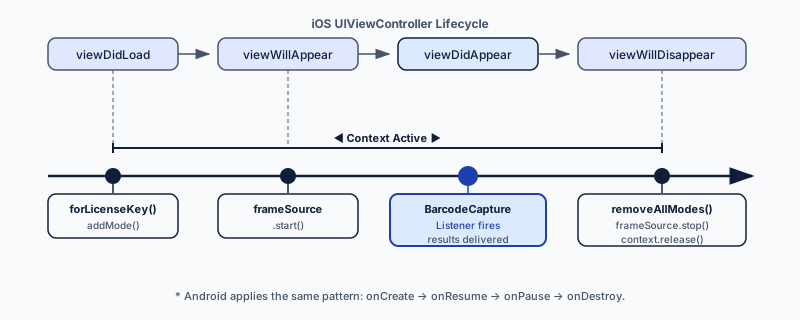
Correctly mapping the SDK's state management to each platform's application lifecycle is the second most common source of integration errors after five-element wiring mistakes. The core principle is consistent across all platforms: the camera (FrameSource) must be explicitly stopped when the scanning surface moves to background and explicitly restarted when it returns to foreground.
iOS — UIViewController Lifecycle
On iOS, the integration lifecycle anchors to UIViewController transitions:
| UIViewController Event | SDK Action |
|---|---|
viewWillAppear(_:) |
camera.switch(toDesiredState: .on) |
viewWillDisappear(_:) |
camera.switch(toDesiredState: .off) |
viewDidLoad() |
Initialize five-element stack |
deinit |
Release DataCaptureContext reference |
Calling camera.switch(toDesiredState: .off) in viewWillDisappear() — not in viewDidDisappear() — is important. The camera should begin releasing before the view transition animation completes, so that the next view controller can acquire the camera immediately if needed. Waiting until viewDidDisappear() introduces a window where the camera is still held but the view is no longer visible.
If DataCaptureContext is held as a property of the view controller, it is released automatically when the view controller is deinitialized. If it is held in a shared service layer (a common pattern for integrations that reuse the same context across multiple scanning screens), call context.removeCurrentMode() and stop the frame source when the scanning module is fully shut down — for example, when the user logs out or navigates away permanently from the scanning module.
Android — Activity and Fragment Lifecycle
On Android, the integration lifecycle maps to Activity or Fragment transitions:
| Android Lifecycle Event | SDK Action |
|---|---|
onResume() |
camera.switchToDesiredState(FrameSourceState.ON) |
onPause() |
camera.switchToDesiredState(FrameSourceState.OFF) |
onCreate() |
Initialize five-element stack |
onDestroy() |
barcodeCapture.removeListener(...) + dataCaptureContext.removeCurrentMode() |
The Android camera subsystem is a shared resource managed by the operating system. An Activity that holds a camera session in onPause() prevents other applications — including the device's built-in camera app — from accessing the camera until the session is explicitly released. This is a user-visible bug: the device camera app will display an error until the scanning application releases the resource.
On Android 12+, the OS enforces additional restrictions on camera access from background processes. Integrations that attempt to keep the camera active in the background encounter security exceptions. The onPause() release is not optional on modern Android.
Web — Page Visibility API
Web TypeScript — SDK initialization with libraryLocation
import {
  Camera,
  DataCaptureContext,
  FrameSourceState,
} from "@scandit/web-datacapture-core";
import { BarcodeCapture, barcodeCaptureLoader } from "@scandit/web-datacapture-barcode";

// WASM and Worker files must be served from the sdc-lib/ directory.
// A 404 on any file here causes forLicenseKey() to reject — check Network tab.
await DataCaptureContext.forLicenseKey(
  process.env.NEXT_PUBLIC_SCANDIT_KEY!,
  {
    libraryLocation: new URL("sdc-lib/", document.baseURI).toString(),
    moduleLoaders: [barcodeCaptureLoader()],
  }
);

// Reference the context via sharedInstance, not a captured return value
const camera = Camera.pickBestGuess();
await camera.applySettings(BarcodeCapture.recommendedCameraSettings);
await DataCaptureContext.sharedInstance.setFrameSource(camera);

// Clean up when the tab closes or the component unmounts:
// stop the camera and detach the view — do not dispose the context
async function cleanup() {
  await DataCaptureContext.sharedInstance.frameSource
    ?.switchToDesiredState(FrameSourceState.Off);
  view.detachFromElement();
}
window.addEventListener("beforeunload", () => { void cleanup(); });
Web SDK integrations should anchor camera state to the Page Visibility API rather than component lifecycle events:
import { FrameSourceState } from "@scandit/web-datacapture-core";

document.addEventListener("visibilitychange", async () => {
  if (document.hidden) {
    await camera.switchToDesiredState(FrameSourceState.Off);
  } else {
    await camera.switchToDesiredState(FrameSourceState.On);
  }
});
Browser tabs that hold active camera sessions when they move to background continue consuming device resources and may trigger browser security warnings on some platforms. Mobile browsers on iOS Safari and Android Chrome enforce their own camera release policies, but relying on browser enforcement rather than explicit release creates unpredictable behavior across browser versions.
React Native — Component Lifecycle
In React Native, DataCaptureContext is a process-wide singleton: call DataCaptureContext.initialize(licenseKey) once at module level and access it everywhere via DataCaptureContext.sharedInstance. The scanning component's mount/unmount cycle governs the camera and the mode — not the context:
// DataCaptureContext.initialize() is called once at module level (see initialization above).
// Per-screen cleanup operates on the camera, mode, overlay, and listener.
useEffect(() => {
  barcodeCapture.isEnabled = true;
  camera?.switchToDesiredState(FrameSourceState.On);

  return () => {
    barcodeCapture.isEnabled = false;
    camera?.switchToDesiredState(FrameSourceState.Off);
    dataCaptureView?.removeOverlay(overlay);
    barcodeCapture.removeListener(listener);
    context.removeMode(barcodeCapture);
  };
}, []);
Never call context.dispose() in cleanup. Because the context is shared by the entire app, disposing it tears down every Scandit screen — not just the one unmounting — and leaves the app unable to scan again until the JS bundle reloads. The complete unmount cleanup is exactly: camera off, mode disabled, overlay removed, listener removed, mode removed. With React Navigation, useFocusEffect is the cleanest place to toggle the camera and isEnabled as the screen gains and loses focus.
Off-Screen Processing Without DataCaptureView
Not every Scandit SDK integration presents a live viewfinder. Industrial automation, robotics, and back-office processing pipelines use the SDK as a pure recognition engine — frames arrive from a device camera at a fixed station, and results are routed to a backend system without any UI.
These architectures omit DataCaptureView and any overlay entirely. The initialization sequence reduces to three elements:
DataCaptureContext(with license key)- A
FrameSource— theCameraof the device running the SDK - A
DataCaptureModewith result listener callbacks
Beyond mobile handsets, Scandit officially supports embedded platforms such as Linux, which is what makes fixed-station and robotics configurations practical. Korean manufacturing and distribution scenarios where this pattern appears:
- Pharmaceutical production line serialization: Fixed downward-facing scanning stations at blister pack labeling points. Each frame contains one GS1 DataMatrix label; the SDK decodes it and the result is pushed to the MFDS serialization reporting API before the item advances on the conveyor.
- Parcel sort gate scanning: Fixed scanning stations at automated conveyor sort gates.
BarcodeCaptureprocesses Code 128 waybill barcodes at the gate and routes sort decisions to the conveyor controller. No viewfinder — the operator console shows a separate UI driven entirely by sort decisions, not raw camera frames. - Warehouse entry/exit verification: Scanning stations at warehouse gates where decoded results are aggregated by a middleware layer before being committed to the warehouse management system.
Confirm the exact platform support matrix and configuration options with the Scandit documentation or the Data Connect engineering team before committing to a fixed-station architecture — hardware and OS constraints vary by deployment.
Mode Switching — The Single-Mode Model
A DataCaptureContext hosts exactly one DataCaptureMode at a time in SDK 8.x. Attempting to attach a second mode produces an error. Workflows that combine capabilities — the common Korean pharmacy counter example of scanning a drug package (DataMatrix) and then a patient's resident registration card (PDF417 or MRZ) — are therefore designed as sequential mode swaps, not concurrent modes.
Choosing the Right Switch
| Situation | Pattern |
|---|---|
| Briefly pause scanning in the same mode | Toggle mode.isEnabled = false |
| Switch capability (e.g. barcode → ID) | context.removeCurrentMode(), then attach the new mode |
| Change settings within the same mode | mode.applySettings(newSettings) |
The cheapest operation is the isEnabled toggle: it keeps the camera and the mode attachment intact and simply pauses recognition. Use it to suppress duplicate scans while handling a result, or for an in-screen pause button. Swap modes only when the recognition capability itself must change.
Sequential Flow Example — Barcode Scan, Then ID Capture
- Attach
BarcodeCaptureto the context and scan. - When the barcode is confirmed, set
barcodeCapture.isEnabled = falseand remove theBarcodeCaptureOverlayfrom the view. - Call
context.removeCurrentMode()to detachBarcodeCapture. - Create
IdCapture, attach it to the context, add its overlay to the view, and start recognition. - Reverse the steps when the ID step completes.
Treat a mode swap as swapping a set: mode, overlay, and listener together. A stale overlay left on the view draws confusing UI on top of the new mode's feedback, and an unreleased listener keeps references alive and leaks memory.
The general performance principle carries over to mode-switch design: enable only the symbologies each step actually needs. A BarcodeCapture configured with a minimal active symbology list processes frames faster and produces fewer false positives than one with everything enabled — restricting the active set is a free improvement.
Android Kotlin — onDestroy memory cleanup pattern
// Explicitly release SDK resources in Activity.onDestroy()
override fun onDestroy() {
    // 1. Disable the mode and remove the listener
    barcodeCapture.isEnabled = false
    barcodeCapture.removeListener(this)

    // 2. Stop the camera (FrameSource)
    camera?.switchToDesiredState(FrameSourceState.OFF)

    // 3. Detach the current mode from the context
    dataCaptureContext.removeCurrentMode()
    super.onDestroy()
}
Troubleshooting — Five Common Pitfalls
Pitfall 1 — Camera Permission Not Granted Before Initialization
On both iOS and Android, the camera permission must be granted before the SDK can access the camera. The SDK itself does not request the permission — that is the application's responsibility. If camera.switch(toDesiredState: .on) is called before the permission is granted, the camera delivers no frames, and the DataCaptureMode listener never fires. The symptom is a frozen camera preview or a black screen.
The correct pattern: complete the platform's permission request flow before calling context.setFrameSource(camera) and before switching the camera on. On iOS, use AVCaptureDevice.requestAccess(for: .video). On Android, use the ActivityResultContracts.RequestPermission API. Do not assume the permission is already granted because the user granted it in a previous app session — permissions can be revoked by the user at any time in Settings.
Pitfall 2 — Web SDK Library Files Returning 404
The Web SDK requires WASM and worker files to be co-located with the application. A 404 on any of these files produces an initialization error that is surfaced in the browser console but may not propagate to the application's error handling if the forLicenseKey() rejection is not caught. The scanner appears to initialize but never starts.
Check: browser developer tools Network tab for any failed requests to paths under the configured libraryLocation. Verify that the files are present in the deployed build's public directory and that the web server serves them with Content-Type: application/wasm for .wasm files and Content-Type: application/javascript for worker .js files.
Pitfall 3 — DataCaptureMode Not Attached to Context
Creating a BarcodeCapture instance without passing the correct DataCaptureContext reference — for example, accidentally passing a newly created context instead of the shared instance — results in a mode that is attached to a context with no frame source and no view. Decoding never occurs, and no error is raised.
A defensive pattern: confirm that the context reference passed to the mode constructor is the same instance reference as the context used to create the view and set the frame source. In dependency injection architectures, this is a natural constraint. In simpler integrations, a singleton context pattern eliminates the ambiguity.
Pitfall 4 — License Expiry in Production
License expiry in a production deployment surfaces as BarcodeCapture listener callbacks that stop firing, with the license problem reported through the DataCaptureContextListener status callbacks. If the application does not implement that listener, the failure is invisible to the operator — the scanner simply stops working.
The prevention pattern: implement a listener on DataCaptureContext's status notifications and surface a clear in-app alert when the license approaches expiry. The 60-day alert recommendation from the License Model section applies here. For Korean enterprise deployments managed by Data Connect, license renewal coordination is part of the annual account management cycle.
Pitfall 5 — Camera Freeze on Resume After Background
The most frequently reported issue in Data Connect's onboarding support queue for Android integrations: the camera preview freezes or shows a static frame when the application resumes from background. Root cause is almost always the frame source not being switched back to ON in onResume() — either because the lifecycle hook is missing, or because the onResume() implementation runs before the DataCaptureContext is fully initialized on first launch.
The correct pattern: initialize the five-element stack in onCreate() (or the equivalent initialization point) before registering lifecycle hooks, and ensure onResume() always calls camera.switchToDesiredState(FrameSourceState.ON). Register a FrameSourceListener and wait for its onStateChanged callback to confirm the camera actually reached ON before re-enabling the mode. If the context is lazily initialized, guard the onResume() call with a null check on the camera reference.
Korean Market Adoption Patterns
A Major Korean Logistics Carrier — Handheld Scanning Modernization
A major Korean logistics carrier managing domestic parcel distribution across hundreds of collection points undertook a handheld scanning modernization program to replace aging dedicated barcode scanner hardware with smartphone-based scanning using the Scandit SDK. The business driver was reducing hardware procurement and maintenance costs while gaining the flexibility to update scanning workflows through app releases rather than firmware updates on proprietary devices.
The integration architecture used BarcodeCapture with SparkScan for the primary picking and sorting workflows — SparkScan's built-in UX handles the high-volume single-scan-per-item flow that dominates parcel logistics without requiring custom UI development for the viewfinder and trigger interaction. The active symbology set was constrained to Code 128 (waybill barcodes) and GS1 DataMatrix (pharmaceutical carton serialization for the carrier's healthcare logistics channel), with active symbol count bounds set to the expected length ranges for each symbology to suppress false reads from secondary labels on packaging.
Android device compatibility was a significant constraint. The installed base of Android handsets in Korean logistics operations spans API levels from 26 (Android 8.0, 2017 devices still in active service at some depots) through current releases — all within SDK 8.x's official minimum of Android 7.0 (API 24). Data Connect verified SDK compatibility across the target device matrix before deployment, identifying two older device models where camera initialization required a specific CameraSettings configuration to avoid a frame delivery timing issue with the front-facing camera selection.
A Korean Pharmaceutical Distributor — MFDS Serialization Verification
A major Korean pharmaceutical distributor operating a national cold-chain distribution network deployed Scandit SDK-based receiving and dispensing verification to meet the MFDS drug serialization reporting mandate. The operational requirement: every pharmaceutical unit item moving through the distribution center must be scanned and reported to the MFDS serialization database before leaving the facility.
The technical challenge specific to pharmaceutical distribution — as opposed to general logistics — is that every DataMatrix code on a pharmaceutical carton must be fully decoded including the GS1 Application Identifier field structure, validated against the MFDS database, and the response confirmed before the item is approved for shipment. A misread or a partial decode results in a compliance gap. The integration used BarcodeCapture in a fixed-station off-screen configuration (no viewfinder) at conveyor scanning stations, with the decoded raw DataMatrix string passed directly to the MFDS API client library for AI field parsing and database lookup.
The DataMatrix decode result must preserve the GS1 FNC1 character (ASCII 29, group separator) that delimits variable-length Application Identifier fields. The Scandit SDK preserves this character in the decoded string by default; the integration must not strip non-printable characters from the result before passing it to the AI parser. Data Connect documented this constraint during the integration review phase, preventing a backend data corruption issue that would have been difficult to diagnose in production.
Medical device regulatory certification — specifically the Korean Medical Device Act requirement for software used in quality management systems at licensed distributors — added a certification layer to the integration timeline. The SDK version locked for certification cannot be updated without restarting the certification process, making the sdkVersion frontmatter field a compliance artifact as well as a technical record.
FAQ
Do I need to instantiate both DataCaptureContext and DataCaptureView?
Yes, but with an important distinction in what each one does. DataCaptureContext is the engine: it holds the license, manages the FrameSource (camera), and coordinates the active DataCaptureMode. DataCaptureView is the screen layer: it renders the camera preview and hosts Overlays that draw scan results. Off-screen processing pipelines — warehouse automation, robotics, fixed cameras — can run with DataCaptureContext and a FrameSource but without a DataCaptureView at all. For any integration that presents a live viewfinder to a user, both are required. Creating a mode without a context, or adding an overlay to a view that is not connected to the correct context, causes silent failures rather than explicit errors at initialization time.
Where do I get a license key and how is it validated?
License keys are issued through the Scandit customer portal at ssl.scandit.com. Each key is scoped to one or more application bundle IDs (iOS) or package names (Android) and encodes an expiry date. On native platforms, validation does not complete synchronously when the context is created — license problems surface asynchronously through the DataCaptureContextListener status (ContextStatus) callbacks. On web, DataCaptureContext.forLicenseKey() is async and its promise can reject on initialization failure. Scandit provides three key categories: trial keys (time-limited, all features), development keys (for registered bundle IDs, watermarked), and production keys (deployed with the shipping app, no watermark). Data Connect manages license provisioning for Korean partner integrations as part of the standard engagement.
How should I handle the camera session when an Activity or ViewController moves to background?
Both platform lifecycles require explicit teardown to prevent camera resource leaks. On Android, call camera.switchToDesiredState(FrameSourceState.OFF) in onPause() and restore it in onResume(). Failing to release in onPause() causes the camera to continue consuming battery in the background and blocks other apps from accessing it. On iOS, call camera.switch(toDesiredState: .off) in viewWillDisappear() and restore in viewWillAppear(). DataCaptureContext does not release the camera automatically when the view disappears — this is intentional, because some integration patterns keep the context alive across multiple view controllers. The developer is responsible for explicit lifecycle management.
Where should the Web SDK library files be placed?
The Scandit Web SDK ships as WebAssembly (WASM) and JavaScript worker files that must be served from the same origin as your web application. The libraryLocation parameter passed to DataCaptureContext.forLicenseKey() tells the SDK where to find these files — typically a path like /scandit-sdk/ mapping to a directory inside your web server's public folder. A 404 on any of the WASM or worker files produces an initialization failure with an error message indicating which file was not found. Common mistakes include placing files behind a CDN that transforms URLs, setting libraryLocation to an absolute URL from a different origin (triggering CORS errors), or failing to serve the files with the correct Content-Type header. For Next.js or Vite, copy the SDK's static assets into the public directory and set libraryLocation to the corresponding public path.
Does license validation work offline?
Yes, for a limited period. After a successful initial validation, the SDK continues to operate through temporary offline periods (a short grace window). Once that window passes, online revalidation is required; if it fails, scanning is disabled. The exact duration and terms depend on the license agreement — confirm with Scandit or Data Connect at contract time. The practical implication for Korean deployments in environments with intermittent connectivity — cold chain vehicles, underground warehouses, hospital basements — is that the application needs periodic network access, and permanently offline deployments require a dedicated offline license arrangement. Setting up an internal alert for 60 days before license expiry is the pattern Data Connect recommends for enterprise deployments.
Last Updated
Last updated: 2026-06-10
For integration support, a proof-of-concept review, or SDK architecture guidance for Korean enterprise deployments, contact Data Connect.
Code Samples
Five-element initialization sequence: Context → FrameSource → Mode → View → Overlay
import ScanditBarcodeCapture

// 1. DataCaptureContext — created with your license key
let context = DataCaptureContext(licenseKey: "-- YOUR LICENSE KEY --")

// 2. FrameSource — request camera and set as context's frame source
let camera = Camera.default
context.setFrameSource(camera, completionHandler: nil)

// 3. DataCaptureMode — BarcodeCapture attached to context
let settings = BarcodeCaptureSettings()
settings.set(symbology: .qr, enabled: true)
settings.set(symbology: .ean13UPCA, enabled: true)
let barcodeCapture = BarcodeCapture(context: context, settings: settings)

// 4. DataCaptureView — attach to context, add to view hierarchy
let captureView = DataCaptureView(context: context, frame: view.bounds)
captureView.autoresizingMask = [.flexibleWidth, .flexibleHeight]
view.addSubview(captureView)

// 5. Overlay — attach to view to draw scan results
let overlay = BarcodeCaptureOverlay(barcodeCapture: barcodeCapture, view: captureView)

// Start the camera session
camera?.switch(toDesiredState: .on)
Five-element initialization sequence: Context → FrameSource → Mode → View → Overlay
import com.scandit.datacapture.barcode.capture.*
import com.scandit.datacapture.barcode.ui.overlay.BarcodeCaptureOverlay
import com.scandit.datacapture.core.capture.DataCaptureContext
import com.scandit.datacapture.core.source.Camera
import com.scandit.datacapture.core.ui.DataCaptureView

// 1. DataCaptureContext — created with your license key
val context = DataCaptureContext.forLicenseKey("-- YOUR LICENSE KEY --")

// 2. FrameSource — default camera assigned to context
val camera = Camera.getDefaultCamera(BarcodeCapture.createRecommendedCameraSettings())
context.setFrameSource(camera)

// 3. DataCaptureMode — BarcodeCapture attached to context
val settings = BarcodeCaptureSettings()
settings.enableSymbology(Symbology.QR, true)
settings.enableSymbology(Symbology.EAN13_UPCA, true)
val barcodeCapture = BarcodeCapture.forDataCaptureContext(context, settings)

// 4. DataCaptureView — inflated in XML or created in code
val captureView = DataCaptureView.newInstance(this, context)
// (add captureView to your layout)

// 5. Overlay — attach to view to draw scan results
val overlay = BarcodeCaptureOverlay.newInstance(barcodeCapture, captureView)

// Start the camera
camera?.switchToDesiredState(FrameSourceState.ON)
Five-element initialization sequence: Context → FrameSource → Mode → View → Overlay
import {
  DataCaptureContext, Camera, DataCaptureView, FrameSourceState,
} from "@scandit/web-datacapture-core";
import {
  BarcodeCapture, BarcodeCaptureSettings, BarcodeCaptureOverlay,
  Symbology, barcodeCaptureLoader,
} from "@scandit/web-datacapture-barcode";

// 1. DataCaptureContext — library files served from /sdc-lib/
await DataCaptureContext.forLicenseKey(
  "-- YOUR LICENSE KEY --",
  {
    libraryLocation: new URL("sdc-lib/", document.baseURI).toString(),
    moduleLoaders: [barcodeCaptureLoader()],
  }
);
// After initialization, always access the context via sharedInstance
const context = DataCaptureContext.sharedInstance;

// 2. FrameSource — best-guess camera with recommended settings
const camera = Camera.pickBestGuess();
await camera.applySettings(BarcodeCapture.recommendedCameraSettings);
await context.setFrameSource(camera);

// 3. DataCaptureMode — BarcodeCapture
const settings = new BarcodeCaptureSettings();
settings.enableSymbology(Symbology.QR, true);
settings.enableSymbology(Symbology.EAN13UPCA, true);
const barcodeCapture = await BarcodeCapture.forContext(context, settings);

// 4. DataCaptureView — mount to a container element
const view = await DataCaptureView.forContext(context);
view.connectToElement(document.getElementById("scanner-container")!);

// 5. Overlay
const overlay = await BarcodeCaptureOverlay.withBarcodeCaptureForView(
  barcodeCapture,
  view
);

// Start the camera
await camera.switchToDesiredState(FrameSourceState.On);
Five-element initialization sequence: Context → FrameSource → Mode → View → Overlay
import {
  DataCaptureContext,
  Camera,
  FrameSourceState,
  DataCaptureView,
} from "scandit-react-native-datacapture-core";
import {
  BarcodeCapture,
  BarcodeCaptureSettings,
  BarcodeCaptureOverlay,
  Symbology,
} from "scandit-react-native-datacapture-barcode";

// 1. DataCaptureContext — call initialize() once at module level
DataCaptureContext.initialize("-- YOUR LICENSE KEY --");
const context = DataCaptureContext.sharedInstance;

// 2. FrameSource
const camera = Camera.default;
camera?.applySettings(BarcodeCapture.recommendedCameraSettings);
context.setFrameSource(camera);

// 3. DataCaptureMode — BarcodeCapture
const settings = new BarcodeCaptureSettings();
settings.enableSymbologies([Symbology.QR, Symbology.EAN13UPCA]);
const barcodeCapture = new BarcodeCapture(settings);
context.addMode(barcodeCapture);

// 4 & 5. DataCaptureView and Overlay rendered in JSX
// <DataCaptureView context={context} style={{ flex: 1 }}>
//   <BarcodeCaptureOverlay barcodeCapture={barcodeCapture} />
// </DataCaptureView>

// Start the camera
camera?.switchToDesiredState(FrameSourceState.On);
References
Frequently Asked Questions
Do I need to instantiate both DataCaptureContext and DataCaptureView?
Yes, but with an important distinction in what each one does. DataCaptureContext is the engine: it holds the license, manages the FrameSource (camera), and coordinates the active DataCaptureMode. DataCaptureView is the screen layer: it renders the camera preview and hosts Overlays that draw scan results. Off-screen processing pipelines — warehouse automation, robotics, fixed cameras — can run with DataCaptureContext and a FrameSource but without a DataCaptureView at all. For any integration that presents a live viewfinder to a user, both are required. Creating a mode without a context, or adding an overlay to a view that is not connected to the correct context, causes silent failures rather than explicit errors at initialization time.
Where do I get a license key and how is it validated?
License keys are issued through the Scandit customer portal at ssl.scandit.com. Each key is scoped to one or more application bundle IDs (iOS) or package names (Android) and encodes an expiry date. On native platforms, license validation does not complete synchronously when the context is created — the context object is constructed either way, and license problems (expired key, bundle ID mismatch) surface asynchronously through the DataCaptureContextListener status (ContextStatus) callbacks. On web, DataCaptureContext.forLicenseKey() is async and the returned promise can reject on initialization failure. Scandit provides three key categories: trial keys (time-limited, all features), development keys (for registered bundle IDs, watermarked), and production keys (deployed with the shipping app, no watermark). Data Connect manages license provisioning for Korean partner integrations as part of the standard engagement.
How should I handle the camera session when an Activity or ViewController moves to background?
Both platform lifecycles require explicit teardown to prevent camera resource leaks. On Android, call camera.switchToDesiredState(FrameSourceState.OFF) in onPause() and restore it in onResume(). Failing to release in onPause causes the camera to continue consuming battery in the background and blocks other apps from accessing it. On iOS, call camera.switch(toDesiredState: .off) in viewWillDisappear() and restore in viewWillAppear(). DataCaptureContext does not release the camera automatically when the view disappears — this is intentional, because some integration patterns keep the context alive across multiple view controllers. The developer is responsible for explicit lifecycle management. React Native and Web integrations follow the same principle: stop the frame source when the scanning component unmounts or the browser tab loses visibility.
Where should the Web SDK library files be placed?
The Scandit Web SDK ships as WebAssembly (WASM) and JavaScript worker files that must be served from the same origin as your web application. The libraryLocation parameter passed to DataCaptureContext.forLicenseKey() tells the SDK where to find these files — typically a path like '/scandit-sdk/' that maps to a directory inside your web server's public folder. A 404 on any of the WASM or worker files produces an initialization failure with an error message indicating which file was not found. Common mistakes include placing the files behind a CDN that transforms URLs, setting libraryLocation to an absolute URL from a different origin (triggering CORS errors), or failing to serve the files with the correct Content-Type header. For frameworks like Next.js or Vite, copy the SDK's static assets into the public directory and set libraryLocation to the corresponding public path.
Does license validation work offline?
Yes, for a limited period. After a successful initial validation, the SDK continues to operate through temporary offline periods (a short grace window). Once that window passes, online revalidation is required; if revalidation fails, scanning is disabled. The exact duration and terms depend on the license agreement — confirm with Scandit or Data Connect at contract time. The practical implication for Korean deployments in environments with intermittent connectivity — cold chain vehicles, underground warehouses, hospital basements — is that the application needs periodic network access, and permanently offline deployments require a dedicated offline license arrangement negotiated with Scandit. Setting up an internal alert for 60 days before license expiry is the pattern Data Connect recommends for enterprise deployments.