
Scan Performance Optimization — Active Symbol Counts, Restrict Symbology, Image Processing Tuning Guide
Last updated: 2026-06-10
TL;DR
Scan performance depends on four independently tunable axes: decode latency, recognition distance, image processing cost, and environmental robustness. The highest-ROI first step is restricting active symbologies to what the environment actually contains. Active Symbol Counts then constrains accepted lengths per symbology, cutting both false reads and CPU cycles. Composite code configuration, image processing parameters, and the AI-driven features in SDK 8 — Scandit AI Engine, Smart Duplicate Filter, and Intent Anticipation (the `scanIntention` property in SDK 8.1+) — layer on top. Internal Korean benchmark deployments (Data Connect field measurements, not generalizable to every environment) show 480 scans per minute on a major logistics carrier's line and a 3.2× throughput gain on a pharmaceutical distributor's GS1 DataMatrix line after full engine tuning.
TL;DR
- Scan performance is determined by four axes: decode latency, recognition distance, image processing efficiency (CPU/battery), and environmental robustness (low light, motion, damage).
- Restricting the active symbology set is the single highest-return action — cutting unneeded symbologies from seven to one reduces per-frame recognition work by up to 80%.
- Active Symbol Counts adds a second pre-filter layer: constraining accepted lengths per symbology eliminates partial reads and reduces callback overhead.
- Internal Korean production benchmarks (Data Connect measurements): 480 scans/min on a logistics carrier line; 3.2× throughput gain on a pharma GS1 DataMatrix line after full engine tuning.
Four Axes Determining Scan Performance
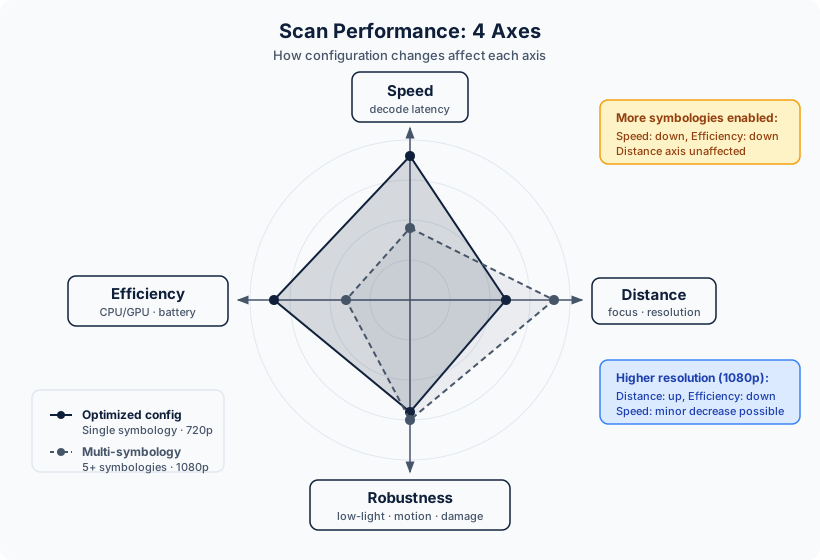
Before tuning individual settings, it helps to frame the problem correctly. Scan performance is not a single number — it is the aggregate result of four independently variable axes. A configuration that optimizes for one axis while leaving others unaddressed will show improvement in testing but may fail in production.
Axis 1: Decode Latency
Decode latency is the elapsed time from camera frame capture to the delivery of a recognized barcode to the application callback. In a 30-frames-per-second scanning session, the SDK has approximately 33 milliseconds per frame to complete all recognition work before the next frame arrives. At 60 fps, that budget drops to 16 milliseconds.
The primary driver of decode latency is the number of active symbologies. Each enabled symbology requires the SDK's AI Engine to run its recognition pass — feature extraction, pattern matching, and decoding — on every frame. A configuration with ten active symbologies performs roughly ten times the recognition work of a configuration with one, all else being equal. On mid-range Android hardware, this difference is measurable in milliseconds per frame and compounds into perceptible scan lag in high-throughput workflows.
Secondary drivers include frame resolution (higher resolution means more pixels to process) and barcode density (more potential barcode regions per frame increases the search load). Both are addressable — but the symbology count is the lever that the SDK configuration exposes most directly.
Axis 2: Recognition Distance
Recognition distance is determined by three physical constraints: the barcode's module size, the camera's optical resolution at the working distance, and the image processing capability of the SDK's AI Engine. The AI Engine is optimized to decode from frames that fall below the threshold where simpler decoders fail, but it cannot recover information the camera's optics did not capture — zoom and focus configuration at the CameraSettings level directly governs what the AI Engine receives to work with.
Axis 3: Image Processing Efficiency
Image processing efficiency encompasses the computational cost of converting raw camera frames into recognition-ready input — demosaicing, noise reduction, and the SDK's AI inference passes before symbology-specific recognition begins.
The practical measure is its impact on device temperature, battery consumption, and thermal throttling under sustained load. On handheld Android devices used for all-day shifts, thermal throttling can reduce effective scan throughput by 20–40% over four to eight hours. Resolution and active AI features are the configurable contributors to thermal load (frame rate is managed internally by the SDK and is not a public setting in SDK 8); configuring the available levers to the minimum needed for operational requirements is a prerequisite for consistent performance over a full shift.
Axis 4: Environmental Robustness
Environmental robustness describes how much the recognition rate degrades when conditions deviate from the clean, well-lit, stationary-label scenario that SDK documentation defaults assume. Real Korean operational environments introduce multiple degrading factors simultaneously: low overhead lighting in cold storage, direct sunlight glare on outdoor dock labels, motion blur from conveyor speeds above 0.5 m/s, and barcode damage from moisture, abrasion, and adhesive failure.
A configuration that achieves 98% recognition rate on pristine labels in office conditions may fall to 60–70% under cold storage lighting and motion. Environmental robustness is addressed through a combination of hardware choices (supplemental lighting, appropriate camera hardware), SDK configuration (resolution selection, zoom calibration, and on iOS the adaptiveExposure option), and the AI-driven features in SDK 8 that are specifically engineered to recover recognition under adverse conditions.
Restrict Symbology — The Highest-ROI First Step
The most impactful optimization available in any Scandit SDK integration is also the simplest: disable every symbology that the scanning environment does not contain.
The SDK ships with a defined set of default activation states for each symbology — some are enabled by default, others are disabled. Developers who integrate the SDK and leave the default configuration without explicit review are frequently enabling symbologies that will never appear in their environment while leaving operationally necessary ones disabled. This is a direct source of unnecessary processing overhead on every frame, and it compounds across the full duration of every scanning session.
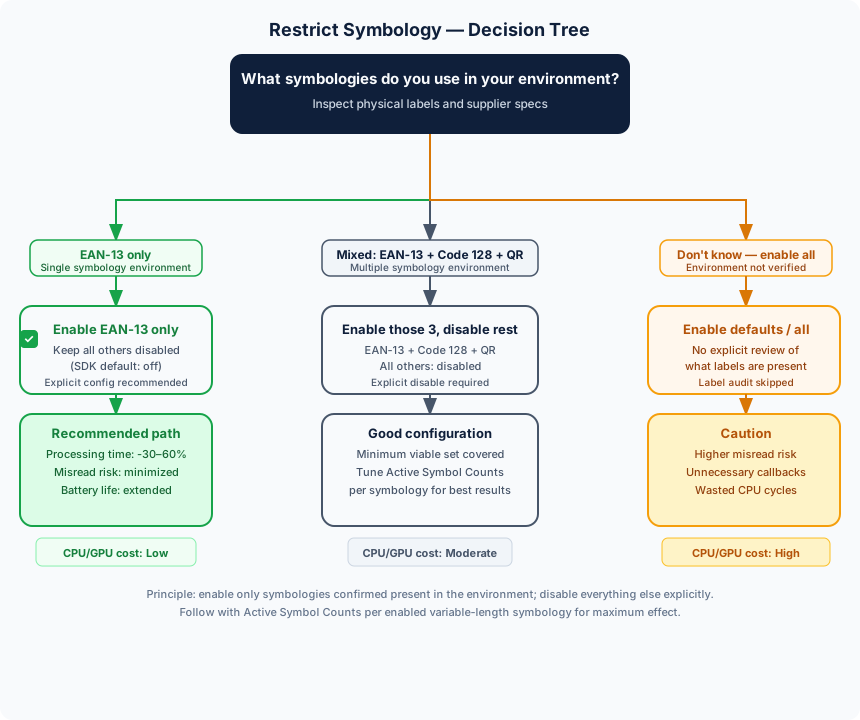
Data Connect's standard recommendation for new integrations is a whitelist approach from the first configuration pass. Before writing any code, enumerate the barcode types present in the operational environment. Inspect physical labels if possible; review supplier specifications for incoming goods. Then in the SDK configuration, explicitly enable only those symbologies and explicitly disable everything else.
The code samples in this guide demonstrate this pattern for a logistics waybill station: Code 128 is enabled, all other symbologies are disabled. The iOS Swift sample calls settings.set(symbology: .code128, enabled: true) and relies on the SDK's default-off state for unspecified symbologies. The Android Kotlin sample calls settings.enableSymbology(Symbology.CODE128, true) with the same intent. The Web TypeScript and React Native samples follow the same one-line pattern with platform-appropriate API forms.
For mixed-environment deployments where multiple symbology families genuinely appear — a fulfillment warehouse processing EAN-13 product codes, Code 128 waybills, and QR returns labels simultaneously — the correct approach is to enable all three families and use Active Symbol Counts and BarcodeFilterSettings to differentiate between them at the result level. Enabling only one symbology family in a multi-family environment is not the right optimization; it creates operational gaps. The optimization is reducing the active set to the minimum viable set, not below it.
On mid-range Android devices — a significant fraction of Korean warehouse scanner fleets — the difference between a one-symbology and five-symbology configuration is measurable in per-frame decode time and sustained battery draw. Data Connect field measurements from Korean logistics deployments show a consistent 15–25% improvement in sustained throughput over four-hour sessions when the active set is reduced from a default configuration to a deployment-specific whitelist.
Active Symbol Counts — Length Restriction for Speed and Accuracy
SymbologySettings.activeSymbolCounts operates inside the recognition stage for a given symbology, after the SDK has committed to attempting a decode. It constrains which decoded lengths the SDK will accept as valid results. A decoded string whose character count falls outside the configured set is discarded before it reaches the application callback.
For fixed-length symbologies like EAN-13 (always 13 digits) or EAN-8 (always 8 digits), Active Symbol Counts has no practical effect — there is only one valid length. For variable-length symbologies — Code 128, Code 39, Code 93, Interleaved 2 of 5 — the configured length range determines which decodes are reported.
The operational value of Active Symbol Counts is twofold.
Noise reduction. In environments where barcode labels coexist with printed text, decorative patterns, or adjacent labels at the edge of the camera frame, the SDK's recognition engine may occasionally produce a partial decode — a valid-format but incorrect-content string that happens to satisfy the symbology's checksum requirement. These partial decodes are substantially more likely to produce lengths that fall outside the expected operational range than lengths within it. A Code 128 waybill string that should be 12 characters is rarely misread as another 12-character string; it is more likely misread as an 8- or 20-character anomaly. Setting Active Symbol Counts to accept only 12-character results eliminates that class of false reads entirely.
CPU efficiency. The active symbol count check occurs inside the symbology's recognition stage, before the fully decoded result is assembled and delivered to the callback. This means the CPU cost of producing a result that will be rejected by length is not paid at the callback processing layer — it is short-circuited earlier in the pipeline. In high-frame-rate sessions on mid-range hardware, eliminating a fraction of per-frame results early in the pipeline produces a measurable reduction in sustained processing load.
Setting Active Symbol Counts Correctly
The configuration is a Set<Int> (iOS) or Set<Int> (Android/Web/React Native) of accepted character counts. For a domestic parcel carrier waybill that is always 12 characters, the correct setting is Set([12]). For a Code 39 internal inventory code that ranges from 8 to 12 characters depending on the product category, the correct setting is Set([8, 9, 10, 11, 12]) — every integer in the accepted range must be included explicitly because the SDK does not assume a contiguous range.
Setting the range too wide negates the noise reduction benefit. Setting it too narrow produces recognition failures for legitimate codes that fall slightly outside what the configuration anticipated. The correct range comes from inspection of the actual production data, not from assumptions about what the data "should" look like.
In the iOS Swift sample at the top of this page:
let symSettings = settings.settings(for: .code128)
symSettings.activeSymbolCounts = Set([12])
The settings(for:) call retrieves the SymbologySettings object for Code 128 from the BarcodeCaptureSettings. The active symbol count is then set on that object. The same pattern in Android Kotlin uses settings.getSymbologySettings(Symbology.CODE128).
Web TypeScript — Active Symbol Counts: before/after CPU savings
import { BarcodeCaptureSettings, Symbology } from "@scandit/web-datacapture-barcode";

const settings = new BarcodeCaptureSettings();
settings.enableSymbology(Symbology.Code128, true);

// BEFORE: no length constraint — decoder evaluates all possible lengths per frame.
// Partial decodes of adjacent labels (e.g. 6- or 20-char Code 128) reach the callback,
// triggering unnecessary database lookups and increasing sustained CPU load.

// AFTER: constrain to exactly 12 characters (domestic parcel waybill length).
// Results outside this count are discarded before the callback — no database hit,
// reduced per-frame work, measurable improvement in sustained throughput.
const symSettings = settings.settingsForSymbology(Symbology.Code128);
symSettings.activeSymbolCounts = [12];

await barcodeCapture.applySettings(settings);
One calibration note: for symbologies like Code 39 that include start/stop or checksum characters in the module count, verify whether the SDK reports the raw payload length or the symbol length including those characters. For most symbologies the SDK reports decoded data length; confirm against the API documentation before setting production values.
Composite Codes — 1D + 2D Combined for Pharma GS1
GS1 composite codes combine a linear 1D carrier symbol with a stacked 2D component printed immediately above or below it on the same label. The linear component carries the GTIN, and the 2D component carries supplementary Application Identifier data: expiry date under AI (17), batch or lot number under AI (10), and serial number under AI (21). The carrier pairings are fixed by the GS1 specification: CC-A and CC-B (MicroPDF417-based) attach to EAN-13/UPC-A, EAN-8, UPC-E, or GS1 DataBar linear carriers, while GS1-128 (Code 128) carries CC-C only.
The practical result is a single scan event that returns a complete GS1 AI string covering all four mandatory MFDS serialization fields, without requiring the operator to scan two separate symbols. For Korean pharmaceutical dispensing and quality control workflows, this is not a convenience feature — it is the correct technical approach for MFDS-compliant unit-level verification.
Enabling Composite Types in the SDK
Enabling the linear carrier (GS1 DataBar or EAN-13) alone does not activate composite decoding. The SDK must be explicitly configured to look for and decode the 2D component: set BarcodeCaptureSettings.enabledCompositeTypes and also call enableSymbologiesForCompositeTypes() so the component symbologies required by those composite types are enabled. The CompositeType values are:
CompositeType.a— CC-A (compact 2D component, commonly used for small supplementary payloads; carriers: EAN/UPC and GS1 DataBar)CompositeType.b— CC-B (larger 2D component, used when the supplementary payload exceeds CC-A capacity; same carriers as CC-A)CompositeType.c— CC-C (the only type carried by GS1-128/Code 128; less common on pharmaceutical unit packaging)
For MFDS pharmaceutical packaging in Korea, CC-A is the most frequently encountered composite type on unit-level labels. CC-B appears on labels with longer batch or serial number fields. A deployment should enable the composite types that laboratory testing with actual production labels confirms are present — enabling all three types adds processing overhead on every qualifying frame even when only one type appears in practice.
Processing Cost Considerations
Composite code recognition requires the SDK to perform additional image processing after identifying a 1D candidate: it must locate and decode the 2D microcomponent above or below the linear carrier within the same image region. This step adds per-frame latency in environments where 1D codes are frequently detected.
Android Kotlin — Composite Code activation for pharma GS1 (GS1 DataBar carrier + CC-A)
import com.scandit.datacapture.barcode.capture.BarcodeCaptureSettings
import com.scandit.datacapture.barcode.data.CompositeType
import com.scandit.datacapture.barcode.data.Symbology
import java.util.EnumSet

val settings = BarcodeCaptureSettings()

// Enable CC-A composite type: used on Korean MFDS unit-level pharma labels.
// A single scan returns GTIN + expiry (AI 17) + batch (AI 10) — no second scan needed.
// Do NOT enable for general logistics waybill stations — adds per-frame overhead
// with zero benefit.
val compositeTypes = EnumSet.of(CompositeType.A)
settings.enabledCompositeTypes = compositeTypes

// Required: enable the component symbologies for the selected composite types
settings.enableSymbologiesForCompositeTypes(compositeTypes)

// Enable the linear carrier: CC-A/CC-B carriers are EAN/UPC or GS1 DataBar
settings.enableSymbology(Symbology.GS1_DATABAR, true)

// Labels with a GS1-128 (Code 128) carrier use CC-C instead:
// settings.enabledCompositeTypes = EnumSet.of(CompositeType.A, CompositeType.C)
For a dedicated pharmaceutical QC station where the sole scan target is composite-labeled unit packages, this overhead is acceptable and expected. For a general-purpose station that primarily processes standard Code 128 waybills but occasionally handles composite-labeled pharmaceutical parcels, enabling composite types imposes a per-frame cost on the majority of non-composite scans. In the second scenario, the operational question is whether the reduced per-scan latency on waybill scans outweighs the benefit of automatic composite handling — or whether a separate workflow with a dedicated configuration is more appropriate.
Image Processing — Resolution, Zoom, and Frame Rate Tradeoffs
The image that arrives at the SDK's recognition engine is a product of the camera hardware's configuration, which the SDK governs through CameraSettings. Three parameters have the most direct impact on the recognition quality-versus-efficiency tradeoff.
Resolution
Higher resolution provides more pixel data per barcode module, which improves recognition reliability at longer distances and with smaller symbologies. It also increases the per-frame processing load proportionally — roughly quadrupling the pixel count by doubling both dimensions doubles the memory and compute requirements per frame.
The Scandit SDK exposes resolution via CameraSettings.preferredResolution, whose options are HD (1280×720), Full HD (1920×1080), and UHD 4K (3840×2160), plus an automatic default. The appropriate selection depends on the scanning scenario:
- Nearby large barcodes (handheld scanning of waybill labels at 20–40 cm): HD resolution is typically sufficient and reduces thermal load on all-day scanning shifts.
- Distance scanning or small symbologies (dock door label reading at 1–2 meters, or pharmaceutical DataMatrix at 5–8 mm symbol size): Full HD resolution is necessary to maintain adequate module-level pixel density at the working distance.
- Mixed-distance workflows: full-HD with a zoom factor set via
CameraSettings.zoomFactorcalibrated to the most common working distance gives the AI Engine the best available input while relying on platform auto-focus for remaining variability. - Extreme distance or precision recognition (fixed conveyor cameras at 1 m+, or damaged small barcodes on pharmaceutical or aviation lines): 4K (UHD, 3,840×2,160) provides approximately 4× more pixels than 1080p and ~9× more than 720p. Modern smartphones also support 4K (UHD) capture, but the pixel count is 4× higher than 1080p, dramatically increasing CPU/GPU and battery load — typically reserved for fixed-camera or externally-powered conveyor scanning, not handheld.
iOS Swift — Camera resolution tuning (distance vs. battery tradeoff)
import ScanditBarcodeCapture

// For long-distance scanning (dock doors, conveyor overhead): Full HD
// Tradeoff: 2.25× more pixels to process → higher CPU and battery draw
let cameraSettings = BarcodeCapture.recommendedCameraSettings
cameraSettings.preferredResolution = .fullHD  // 1920×1080 — for 60 cm+ working distance

// For handheld nearby scanning (20–40 cm): HD is typically sufficient
// Start here, escalate to fullHD only if recognition rate is inadequate
// cameraSettings.preferredResolution = .hd    // 1280×720 — lower thermal load

let camera = Camera.default
camera?.apply(cameraSettings)
Data Connect's field recommendation is to start at HD resolution and evaluate recognition rate against the specific label inventory of the deployment before escalating to Full HD. The improvement from HD to Full HD is measurable in distance and small-symbol scenarios; in a handheld nearby-scan scenario it may produce no recognition improvement while increasing thermal output.
Zoom
Camera zoom is configured via CameraSettings.zoomFactor (a floating-point multiplier, where 1.0 is the default field of view). On devices with multiple physical lenses, the SDK uses optical zoom where the zoom factor corresponds to a physical lens switch; above the optical maximum, digital zoom is applied. Optical zoom is lossless in resolution terms; digital zoom crops and interpolates the existing sensor output.
For fixed-distance scanning stations — a conveyor portal where the camera is mounted at a defined height above the belt, or a receiving dock where labels always arrive at 50–80 cm — setting a fixed zoom factor calibrated to the actual working distance produces consistently better recognition rates than the default zoom-1.0 view. The calibration process is straightforward: in a controlled test, incrementally increase the zoom factor from 1.0 until recognition rate peaks, then use that value as the production configuration.
For variable-distance workflows, avoid manually configured fixed zoom. Leave zoom at 1.0 and let the platform auto-focus handle the variability.
Frame Rate
Frame rate is managed internally by the SDK — SDK 8 exposes no public frame-rate setting (CameraSettings covers resolution, zoom, and focus). The capture pipeline targets the rate the device camera negotiates for the selected resolution. In practice this means the configurable levers for moving-barcode scenarios are resolution, zoom calibration, and the physical setup (conveyor speed, label presentation), not an fps knob.
Lighting and Exposure — Dark Environments, Sunlight Glare, Distance Variation
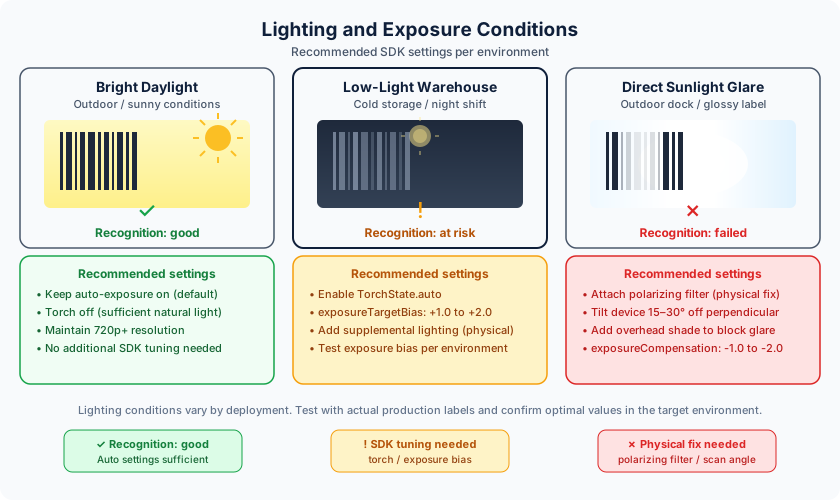
Camera auto-exposure algorithms are optimized for photographic output, not for barcode recognition.
Low-Light Environments
In Korean cold storage warehouses and nighttime logistics operations, overhead lighting is frequently insufficient for reliable auto-exposure at standard ISO settings. The camera's auto-exposure response is to increase ISO gain, which amplifies noise across the sensor. High ISO noise introduces pixel-level variation that obscures the fine module boundaries of small DataMatrix symbols and the quiet-zone edges of Code 128.
Practical interventions, in order of cost:
- Supplemental lighting at the scan point: An LED illuminator ring or a directional LED fixture positioned to provide even illumination on the label surface. Even a simple clip-on LED light on a handheld device dramatically reduces the exposure challenge. This is the most reliable solution and the one Data Connect recommends for fixed-station deployments in cold storage.
Web TypeScript — manual camera torch control for low-light environments
import { Camera, TorchState } from "@scandit/web-datacapture-core";

const camera = Camera.pickBestGuess();

// Manual ON — bind to a UI button for operator control
await camera?.setDesiredTorchState(TorchState.On);

// Manual OFF — use when torch causes specular reflection
// await camera?.setDesiredTorchState(TorchState.Off);

// Note: torch auto mode (TorchState.auto) is available on the iOS/Android
// native SDKs only; the web TorchState enum offers On/Off.
CameraSettings.adaptiveExposure(iOS, SDK 8.1+): Exposure is otherwise delegated to the platform's auto-exposure — SDK 8 exposes no public exposure-compensation or shutter-speed API. On iOS, enablingadaptiveExposurelets the SDK adapt exposure toward barcode readability in low-light scenes. If low light is your dominant operating condition, enable it on iOS and validate the effect with an on-site test.
Sunlight Glare
Outdoor scanning at dock doors, vehicle loading areas, and yard operations introduces the opposite problem: direct sunlight on a glossy label surface creates specular reflections that the camera captures as bright white regions, washing out bar or module contrast in those zones. Diffuse label surfaces — matte finishes or textures — reduce specular reflection; glossy protective laminate on outdoor labels amplifies it.
The Scandit SDK's AI Engine is specifically trained on degraded-image inputs that include glare artifacts, and it shows substantially better glare tolerance than threshold-based decoders. Nevertheless, there is a glare intensity beyond which even the AI Engine cannot recover contrast information that the camera did not capture. Physical mitigation — a polarizing filter on the camera lens, an overhang or shade at the scan point, or guidance to operators on scan angle (angling the device 15–30 degrees from perpendicular to the label surface breaks the specular reflection angle) — addresses the problem at its source rather than in software.
Distance Variation
Labels that appear at multiple distances within a single scanning session — a common scenario at receiving docks where packages of varying heights arrive on a conveyor — challenge the camera's auto-focus system. Auto-focus on mobile camera hardware typically has a 0.2–0.5 second settling time after a focus change, during which frames may be blurred enough to prevent recognition. At 30 fps, that settling time corresponds to 6–15 frames with reduced recognition probability.
Practical mitigations: restricting the working distance range physically (using a fixed-height label presentation jig at the scan point), or setting a fixed zoom factor via CameraSettings.zoomFactor calibrated to the most common working distance so the auto-focus system has less range to traverse.
AI-Driven Optimization — SDK 8 Features
Scandit SDK 8 introduced AI-driven features that address scan performance limitations that static configuration parameters cannot fully resolve. These features are not settings to tune — they are adaptive behaviors that the SDK applies based on inferred operating conditions. Verified features include the Scandit AI Engine (umbrella), Smart Duplicate Filter, and Intent Anticipation via the scanIntention property. See Scandit Docs — AI-Powered Barcode Scanning for the authoritative feature list.
Intent Anticipation (scanIntention)
SDK 8.1 introduced the scanIntention property on BarcodeCaptureSettings, which defaults to ScanIntention.SMARTSELECTION. This setting prevents unintentional repeat scans of the same barcode — for example, when an operator holds the camera steady over a label after completing a scan. The SDK infers from device motion and timing whether a new scan event is intended, and suppresses repeat callbacks for the same barcode until the operator clearly moves to a new target.
This is distinct from multi-barcode disambiguation (selecting between adjacent barcodes on a dense shelf), which is the domain of MatrixScan Pick — a separate Scandit product. See MatrixScan products for that capability.
iOS Swift — Intent Anticipation via scanIntention (SDK 8.1+)
import ScanditBarcodeCapture

let settings = BarcodeCaptureSettings()
settings.set(symbology: .ean13UPCA, enabled: true)

// SDK 8.1+ default: ScanIntention.SMARTSELECTION prevents unintentional
// repeat scans of the same barcode. Set explicitly to make the intent clear.
// See: https://docs.scandit.com/sdks/web/ai-powered-barcode-scanning/
settings.scanIntention = .smart

// .manual reports every detected barcode immediately — use for kiosk/fixed scan
// where repeat-scan suppression is not needed.
// settings.scanIntention = .manual

let barcodeCapture = BarcodeCapture(context: context, settings: settings)
Korean Market Benchmarks
The following performance benchmarks are drawn from Data Connect deployments in Korean enterprises. Customer names are not disclosed; the operational context and configuration details are representative. Korean cold chain environments add a further constraint: battery performance on handheld devices degrades 20–40% below -10°C, and label condensation during warm-to-cold transitions temporarily reduces contrast — both factors are relevant when interpreting the cold-storage recognition rates below.
Major Korean Logistics Carrier — Parcel Sort Line
A major Korean logistics carrier's parcel sort line reaches 480 scans per minute on the primary sortation conveyor after Scandit SDK configuration optimization. The scanning configuration uses a single active symbology (Code 128), Active Symbol Counts constrained to the carrier's waybill length, and a fixed zoom factor calibrated to the 60 cm conveyor belt height. The previous configuration, which used a default multi-symbology setup without length restriction, achieved 310 scans per minute at the same conveyor speed — a 55% improvement from configuration changes alone, with no hardware modifications.
The primary bottleneck before optimization was recognition failures caused by partial decodes of non-waybill labels (product EAN-13 codes visible through transparent packaging windows) reaching the application callback and triggering unnecessary database lookups. Active Symbol Counts eliminated this class of spurious results before they reached the callback, and the reduction in callback processing load contributed to the throughput improvement alongside the recognition speed gain.
Korean Pharmaceutical Distributor — GS1 DataMatrix + Composite Line
A Korean pharmaceutical distributor's MFDS-serialized inventory verification line achieved a 3.2× throughput improvement after enabling GS1 DataMatrix recognition with CC-A composite type and constraining Active Symbol Counts to the 14-digit GTIN field length expected in the AI(01) payload component.
Before optimization, the configuration relied on full GS1 DataMatrix decode with no length restriction, accepting any DataMatrix result reaching the callback. The application layer was performing GS1 AI parsing and MFDS serial number lookup on every result, including DataMatrix symbols from secondary carton packaging that carried internal logistics codes rather than MFDS serialization payloads. These logistics DataMatrix codes were structurally valid but not relevant to the verification workflow, and the MFDS database queries they triggered added latency to every scan event.
After optimization: Active Symbol Counts filtered out non-MFDS-length DataMatrix results before the callback, composite CC-A decoding was enabled to capture the supplementary AI fields in a single scan event (eliminating the need for a second scan of the linear carrier on labels that carried both components), and BarcodeFilterSettings.excludedCodesRegex with the MFDS AI(01) pattern pre-checked format compliance before the callback received the result. The combined effect reduced per-item verification time from an average of 1.4 seconds to 0.44 seconds under sustained operation.
Filtering Deep Dive Is a Separate Guide
The optimization settings covered in this guide — symbology restriction, Active Symbol Counts, composite code configuration, image processing parameters, and SDK 8 AI features — govern the engine-level behavior of the Scandit SDK's recognition pipeline. They determine what the SDK attempts to decode and how efficiently it does so.
Symbology and regex filtering operate at a different layer: they process already-decoded results and decide which ones reach the application. These two layers are complementary but distinct. Engine tuning reduces the volume and type of recognition work the SDK performs. Post-recognition filtering removes results from the callback and overlay after the recognition work has been done.
Related deep dive: post-recognition filtering layers are covered in detail in the filtering guide. Combine engine tuning here with post-recognition filtering there for best results. A production configuration that applies both layers effectively is more than the sum of its parts: engine tuning reduces the recognition load, and filtering ensures that only operationally relevant results reach the application. Data Connect's standard integration review covers both layers together, because a gap in either produces a configuration that is sub-optimal in ways that only show up under sustained production conditions.
Frequently Asked Questions
The following expanded answers correspond to the five FAQ items in this page's structured data. These questions represent the most common performance-related inquiries Data Connect engineers encounter during Scandit SDK integration projects in Korea.
On which setting has the biggest impact on scan speed: Restricting the active symbology set delivers the largest single improvement because it eliminates recognition work for every symbology that does not appear in the environment. The benefit compounds with session duration — the longer the session, the larger the aggregate saving from reduced per-frame recognition passes. Active Symbol Counts amplifies this further by eliminating spurious results from enabled symbologies before they consume callback processing resources. Both are API configuration adjustments, not hardware investments.
On extending recognition distance: Set the zoom factor calibrated to the actual working distance, verify focus is sharp at that distance, and evaluate hardware upgrade options if recognition reliability is still not meeting requirements. Beyond the software ceiling — set by the camera's optical resolution and the zoom factor achievable before digital zoom degrades effective resolution — the only solutions are a hardware upgrade or reducing the working distance physically.
On Active Symbol Counts versus symbology enable: Symbology enable/disable comes first. Applying Active Symbol Counts to a disabled symbology is a no-op; relying on it to substitute for symbology disable is a performance error. Configure symbology enable/disable first to establish the minimum viable active set, then apply Active Symbol Counts to each enabled variable-length symbology. Symbology disable prevents recognition from occurring at all; Active Symbol Counts filters results after recognition has occurred. Both are necessary.
On low-light recognition drops: Diagnostic sequence: (1) confirm auto-exposure is not suppressed by application code; (2) evaluate supplemental lighting at the scan point; (3) test CameraSettings.exposureTargetBias with a positive offset; (4) evaluate supplemental lighting fixtures or higher-resolution capture if device supports 4K. In cold storage, plan for condensation on label surfaces during the warm-to-cold transition — no software setting compensates for a label surface optically opaque from water coverage. Operational protocols (temperature-equilibrating packages before scanning) may matter as much as SDK configuration.
On when to activate Composite Codes: The triggering condition is confirmed presence of GS1 composite labels in the operational label inventory — not the possibility they might appear. Enable only the composite types laboratory testing with actual production labels confirms are present. For MFDS pharmaceutical workflows, CC-A is effectively always necessary. For general logistics workflows, composite recognition adds overhead with no benefit and should remain disabled.
Last Updated
Last updated: 2026-05-01
The content on this page is current for Scandit SDK 8.x. API signatures and configuration patterns may change with SDK version updates; Data Connect reviews this content quarterly. For full API reference, see Scandit Docs — Configure Barcode Symbologies (iOS), SymbologySettings API (iOS), and AI-Powered Barcode Scanning (Web SDK 8).
For Scandit SDK integration support, performance benchmarking in your operating environment, or MFDS pharma serialization guidance specific to the Korean market, contact Data Connect.
Code Samples
Restrict symbology to Code 128 only, Active Symbol Counts constrained to 12-character domestic waybill
let settings = BarcodeCaptureSettings()
// Restrict symbology: enable only Code 128
settings.set(symbology: .code128, enabled: true)
// Active Symbol Counts: accept exactly 12-character Code 128 (waybill length)
let symSettings = settings.settings(for: .code128)
symSettings.activeSymbolCounts = Set([12])
Restrict symbology to Code 128 only, Active Symbol Counts constrained to 12-character domestic waybill
val settings = BarcodeCaptureSettings()
// Restrict symbology: enable only Code 128
settings.enableSymbology(Symbology.CODE128, true)
// Active Symbol Counts: accept exactly 12-character Code 128 (waybill length)
val symSettings = settings.getSymbologySettings(Symbology.CODE128)
symSettings.activeSymbolCounts = setOf(12)
Restrict symbology to Code 128 only, Active Symbol Counts constrained to 12-character domestic waybill
import { BarcodeCaptureSettings, Symbology } from "@scandit/web-datacapture-barcode";
const settings = new BarcodeCaptureSettings();
// Restrict symbology: enable only Code 128
settings.enableSymbology(Symbology.Code128, true);
// Active Symbol Counts: accept exactly 12-character Code 128 (waybill length)
const symSettings = settings.settingsForSymbology(Symbology.Code128);
symSettings.activeSymbolCounts = [12];
Restrict symbology to Code 128 only, Active Symbol Counts constrained to 12-character domestic waybill
import { BarcodeCaptureSettings, Symbology } from "scandit-react-native-datacapture-barcode";
const settings = new BarcodeCaptureSettings();
// Restrict symbology: enable only Code 128
settings.enableSymbology(Symbology.Code128, true);
// Active Symbol Counts: accept exactly 12-character Code 128 (waybill length)
const symSettings = settings.settingsForSymbology(Symbology.Code128);
symSettings.activeSymbolCounts = [12];
References
Frequently Asked Questions
Which setting has the biggest impact on scan speed?
Restricting the active symbology set is the highest-return first step. Every symbology that remains enabled forces the SDK's AI Engine to run that symbology's recognition pass on every camera frame. If your deployment scans Code 128 waybills but also has QR, EAN-13, DataMatrix, and ITF-14 active by default, the engine is performing five recognition passes per frame when it needs one. Disabling the four unnecessary symbologies reduces per-frame recognition work by roughly 80% in that example, with an immediate and measurable impact on decode latency and battery draw. Active Symbol Counts is the second lever: once the symbology set is restricted, constraining accepted lengths eliminates partial and incidental reads before they consume callback processing resources. Both changes are API calls, not hardware investments.
How do I extend recognition distance?
Recognition distance is governed by three interacting factors: camera resolution, optical zoom level, and the physical module size of the barcode. For camera-based scanning with the Scandit SDK, the primary software-side lever is zoom configuration — the SDK exposes camera zoom via the `CameraSettings` zoom factor property, which drives optical or digital zoom depending on the device's hardware capability. Optical zoom (available on multi-lens devices) preserves resolution at the enlarged view; digital zoom amplifies the existing pixel data at the cost of effective resolution. For fixed-distance scanning scenarios — a conveyor line or a dock door portal where the scan distance is predictable — setting a fixed zoom factor calibrated to that distance produces more consistent results than leaving zoom at the default 1.0×. For extreme distance or precision requirements on fixed-camera or externally-powered conveyor installations, 4K (UHD) resolution provides approximately 4× more pixels than 1080p, improving recognition of distant or damaged small barcodes — though at a dramatically higher CPU/GPU and battery cost that makes 4K unsuitable for handheld use. For variable-distance handheld scenarios, setting a zoom factor calibrated to the typical working distance and relying on the platform's auto-focus for the remaining variability is the practical approach.
Active Symbol Counts vs symbology enable — which comes first?
Symbology enable/disable comes first, always. Disabling a symbology prevents any recognition attempt for that symbology on any frame — it is a pre-filter at the earliest possible point in the pipeline. Active Symbol Counts operates inside the recognition stage for an already-enabled symbology, constraining which decoded lengths are accepted as valid results. Applying Active Symbol Counts to a disabled symbology has no effect. The correct sequencing is: (1) identify which symbologies actually appear in the scanning environment; (2) enable exactly those and disable all others via `SymbologySettings.isEnabled`; (3) for each enabled variable-length symbology, set `activeSymbolCounts` to the range of lengths your environment actually produces. This two-step approach delivers the maximum processing reduction — symbology disable eliminates all recognition cost for excluded types, and Active Symbol Counts eliminates the residual cost of accepting incorrect-length results for the types that are enabled.
Recognition drops in low-light environments. What should I check?
Low-light recognition problems typically stem from one of three sources: insufficient exposure leading to dark, underexposed frames; excessive ISO gain producing noise that obscures barcode modules; or motion blur from slow shutter speeds in dim conditions. The Scandit SDK delegates exposure control to the platform camera API and does not expose manual shutter or exposure-compensation settings. In environments where the camera's auto-exposure consistently underperforms — cold storage facilities with minimal overhead lighting, or night-shift warehouse operations — the practical options are: supplemental lighting at the scan point (an LED ring around the camera or a separate illuminator fixture); the camera torch (`TorchState.auto` on the iOS/Android native SDKs; the Web SDK supports manual On/Off only); and, on iOS, enabling `CameraSettings.adaptiveExposure` (a Bool property available since SDK 8.1) which adapts exposure for barcode recognition in low light. Beyond those levers, the reliable low-light fix is supplemental lighting at the scan point — software alone cannot compensate for genuinely insufficient illumination.
When should I activate Composite Codes?
Activate composite code support when the labels in your scanning environment actually carry GS1 composite symbols — a linear 1D carrier with an attached 2D component encoding supplementary GS1 Application Identifier data. The pairings are fixed by the GS1 specification: CC-A and CC-B (MicroPDF417-based components) attach to EAN-13/UPC-A, EAN-8, UPC-E, or GS1 DataBar carriers, while GS1-128 (Code 128) is the carrier for CC-C only. In Korean pharmaceutical contexts, this typically means unit packages that carry a GS1 DataBar carrier with a CC-A or CC-B component encoding expiry date, batch number, and serial number alongside the linear GTIN. The cost of enabling composite recognition is measurable: the SDK must attempt to locate and decode the 2D component on every frame where the linear carrier is detected, which adds per-frame processing overhead that compounds at high frame rates. For a station that exclusively processes pharmaceutical unit packages, that cost is justified because the composite payload is what the downstream MFDS serialization system needs. For a parcel carrier waybill station processing Code 128 strings only, enabling composite types adds overhead with zero operational benefit. The configuration is `BarcodeCaptureSettings.enabledCompositeTypes` — set it to the specific composite type variants your label format uses, not a global catch-all.